How to pay online
Buy BIMSpeed with international cards in USD through Paddle or Vietnamese bank transfers in VND through VietQR/SePay. Your license belongs to the BIMSpeed account signed in when you create the order.
For employees with separate accounts, see company licenses and team setup.
| Payment source | Select at checkout | Currency |
|---|---|---|
| International card, in Vietnam or abroad | International card (USD) | USD |
| Vietnamese banking app | Vietnamese bank transfer | VND |
Current monthly, yearly and lifetime licenses are one-time purchases without automatic renewal. Short terms are 1, 3 or 6 months with Paddle, and 3 or 6 months with VND bank transfer. Available terms and the final price appear when you create your order.
1. Sign in to the account that needs the license
- Open Buy BIMSpeed.
- If redirected to sign-in, enter your email and password, or use Google. Select EN in the language selector for English.
- Create an account using the registration link if needed, then return to purchase. Use password recovery if you cannot sign in.
- Check the account email on the purchase page. It is read-only. If it is the wrong account, sign out and sign in to the correct one before creating an order.
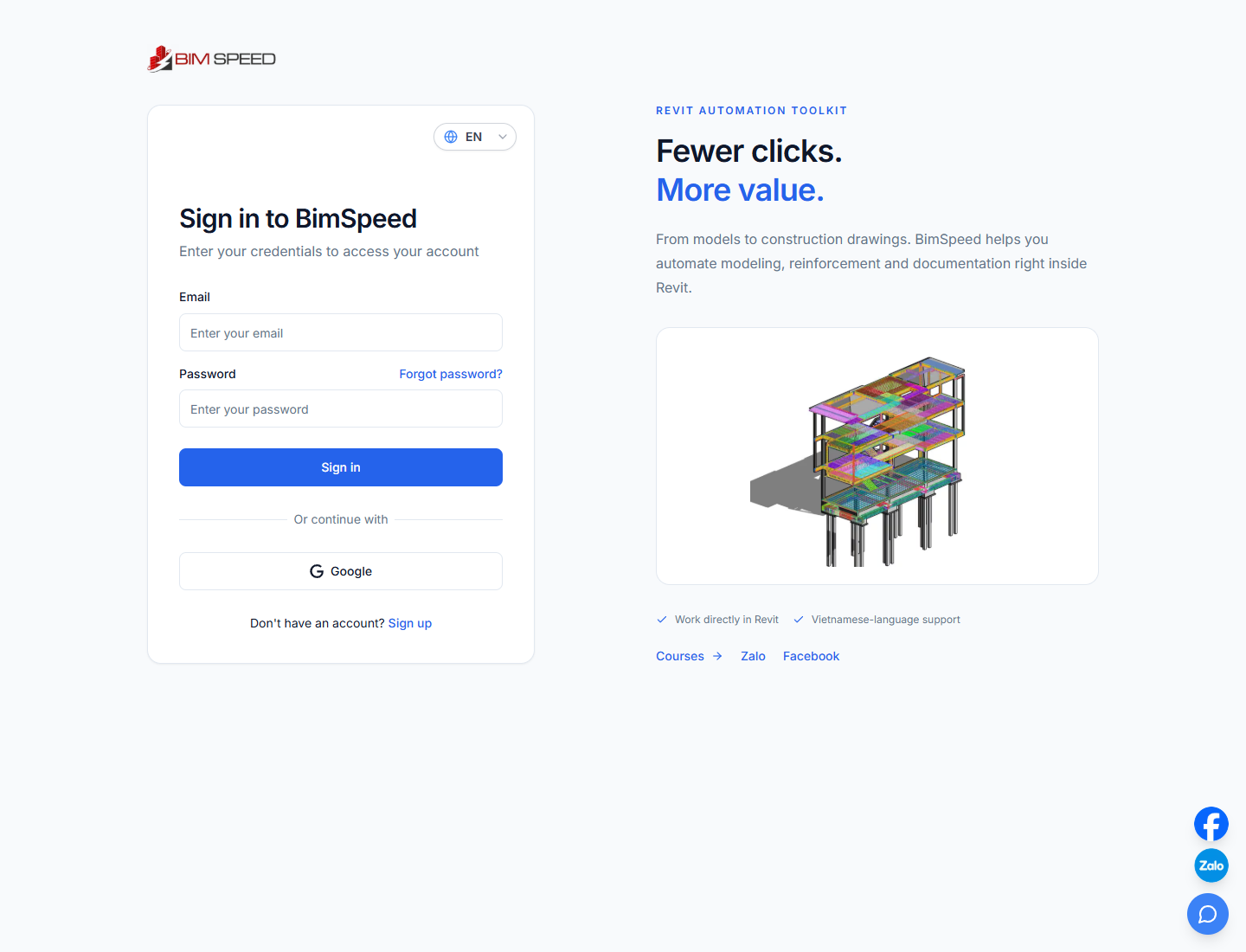
Website screenshot captured on September 28, 2026. You do not need a Paddle seller account to buy BIMSpeed.
2. Choose your tools, term and payment method
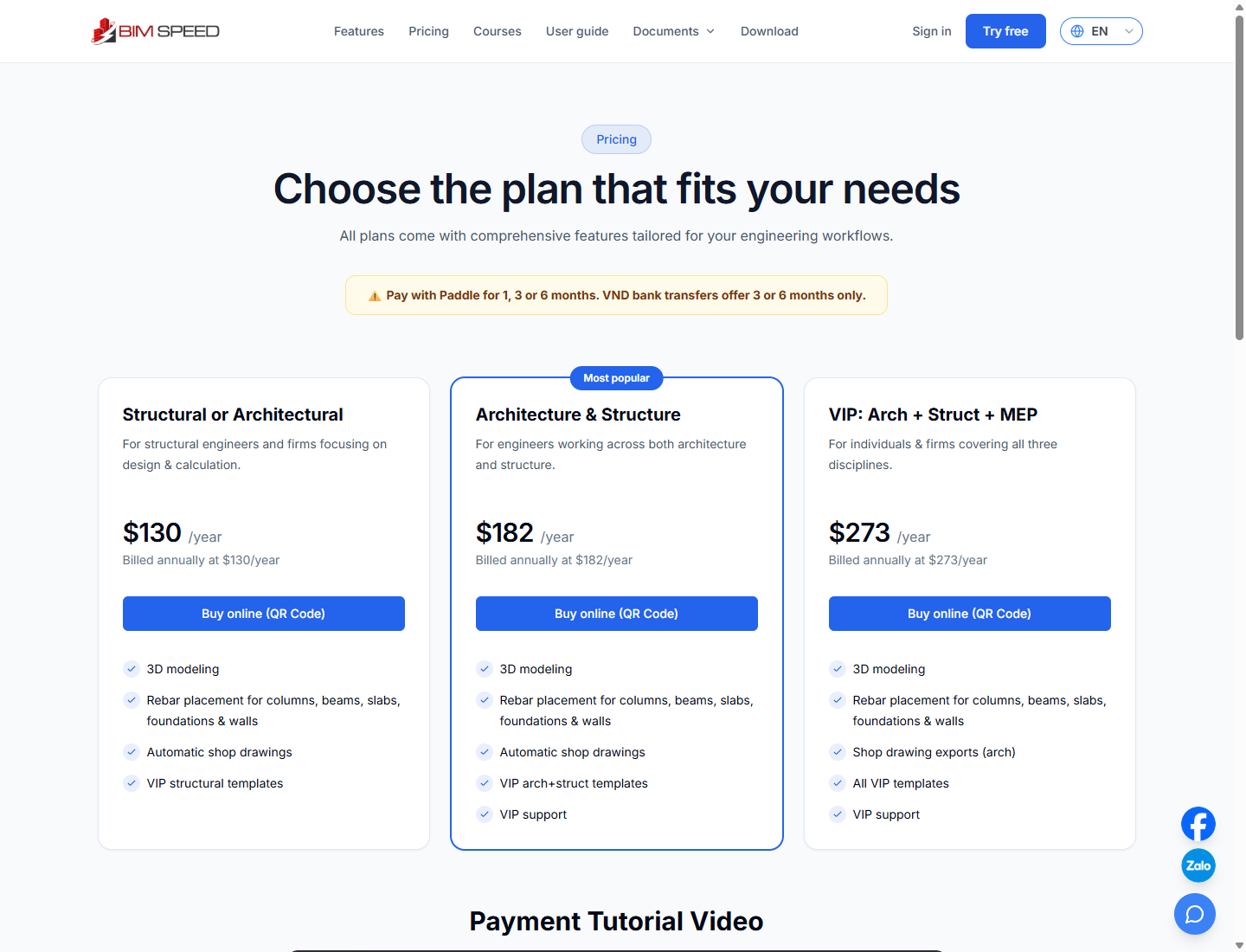
Start from Pricing and use the purchase link under a plan, or open the purchase page directly. The pricing link may say Buy online (QR Code); you choose the actual payment method on the purchase page.
- Select one or more tool bundles: Structural, Architectural or MEP.
- Select a monthly, yearly or lifetime term, then the number of months or years where offered.
- Choose International card (USD) for Paddle. For a one-month purchase, select Paddle and check the term again.
- Optionally enter your phone number.
- Review the order summary: bundles, term, any discount, total and currency.
- Recheck your term after changing methods: an unsupported selection may be reset to an available term.
Screenshots illustrate prices at capture time. Review the amount on your own order and payment window before paying.
3A. Pay internationally with Paddle
Step 1 — Open Paddle checkout
Select the international card option, review your order and click the card payment button. BIMSpeed opens its secure payment page and Paddle checkout. If you close the window, use the reopen checkout button on the same page to continue the existing order.
Step 2 — Review the order summary
Check the product, bundle, term and Due today amount. This example shows BIMSpeed Architecture for one month at USD 15, including VAT at capture time. Other selections have different totals.
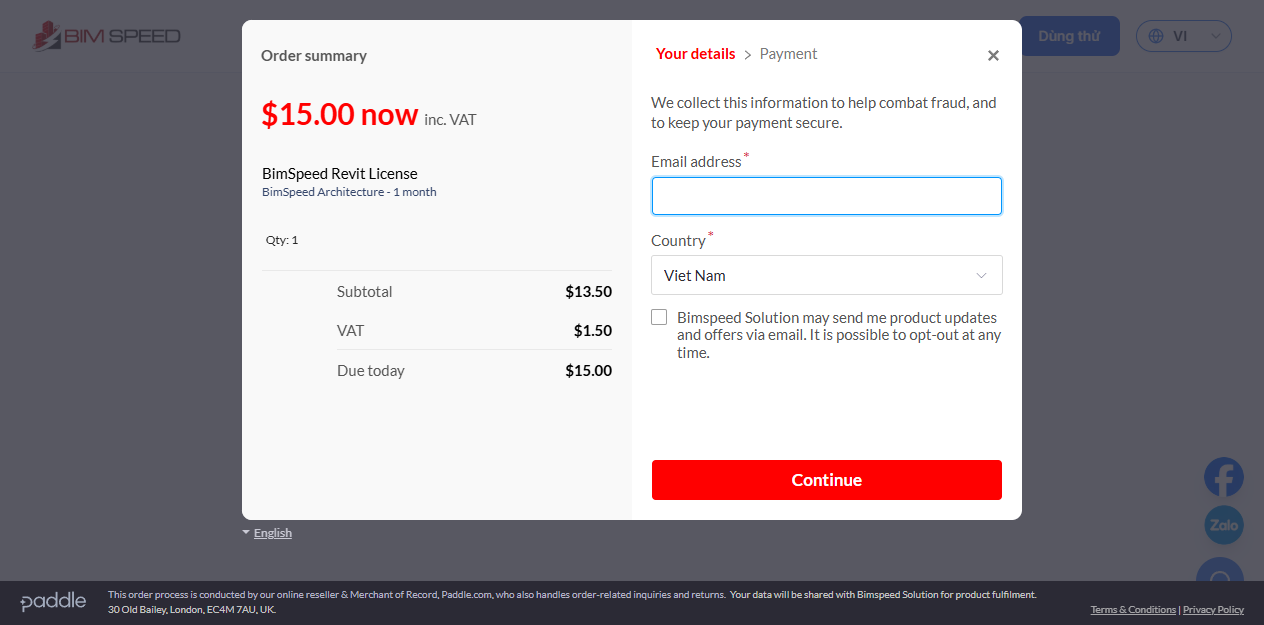
Actual Paddle window saved during deployment verification on September 28, 2026, before buyer details were entered. This is not a receipt or a completed-payment screenshot.
Step 3 — Enter your buyer details
| Field | What to enter |
|---|---|
| Email address | An address where you can receive the receipt; using your BIMSpeed account email makes reconciliation easier |
| Country | Your billing address country; select Viet Nam if applicable |
| Address / postal code, if requested | Your actual billing details |
| Product updates checkbox | Choose according to your email marketing preference |
| Continue | Proceed to payment |
Checkout starts in English. Use its language selector if needed. Changing the email in Paddle does not move the license to a different BIMSpeed account; ownership remains tied to the account that created the order.
Step 4 — Enter payment details
Choose card payment and complete the fields Paddle requests, such as card number, cardholder name, expiry date and security code. Paddle supports networks including Visa and Mastercard. Use another payment option only if offered in your checkout; options can vary by country and device. See Paddle's card guide.
For a card issued in Vietnam, check that online international purchases are enabled and the spending limit is sufficient. If your card account uses another currency, check conversion rates and fees with your issuer.
Step 5 — Confirm and authenticate
- Check the final amount and currency again.
- Click the payment confirmation button in Paddle.
- Complete the bank's 3D Secure challenge if prompted, using its verification code or banking app.
- Wait for processing and the return to BIMSpeed. Avoid clicking pay repeatedly while processing.
Enter card details and verification codes only in the corresponding checkout or bank authentication screen. Do not send them to support.
Step 6 — Wait for confirmation and keep the receipt
The BIMSpeed result page may initially show payment awaiting confirmation. It checks automatically; if this stops after approximately three minutes, use the check-again button. Confirm completion from BIMSpeed's successful payment result and license details.
Paddle sends transaction receipts by email, as described in its receipt email documentation. Check spam if necessary. BIMSpeed license notifications for Paddle orders use English; Paddle receipt language may follow the language chosen in checkout.
3B. Pay in Vietnam with a VietQR bank transfer
Step 1 — Create an order and QR code
Select Vietnamese bank transfer in VND, then click the create-order-and-QR button. The payment panel displays an order reference, VietQR image, amount and bank transfer details. Save the order reference for support.
Step 2 — Open your banking app
Open your Vietnamese banking app and scan the QR on your computer. If buying on your phone, save the QR image and import it into the banking app if supported, or enter the displayed transfer details manually.
Step 3 — Check every transfer field
| Field | Check against your BIMSpeed order |
|---|---|
| Bank and account number | Must match the transfer information panel |
| Account holder | Must match the displayed recipient |
| Amount | The full VND order amount |
| Transfer description | The exact reference generated for this order |
Use the copy buttons for manual entry. Do not replace the description with your name, phone number or a personal message: the reference identifies the order.
Step 4 — Confirm in your bank app
Authorize the transfer as instructed by your bank. Keep the receipt, transaction reference and time. Use the QR for your current order, not an old order or an image from a guide.
Step 5 — Return to BIMSpeed
Keep the payment page open. It checks every five seconds and updates after the transfer is recognized. Automatic checking stops after 15 minutes; use the check-again button if needed. This timer is not a bank processing-time guarantee.
Do not immediately pay again. Recheck the order, amount and transfer description. Send the receipt and order reference to support if payment is still unconfirmed.
4. Check your license
- On the success screen, check the order reference, purchased bundles, amount and expiry date or lifetime status.
- Use the profile button or open your account profile.
- Use that same account in BIMSpeed for Revit. If details have not refreshed, verify the account and sign in again if needed.
- If payment is confirmed but access is still incorrect, contact support with the order reference and account email.
There is no guaranteed fixed activation time. Licensing follows payment confirmation; a bank debit notification can arrive before BIMSpeed finishes confirming the order.
5. Troubleshooting
| Situation | What to do |
|---|---|
| One-month term missing | Select Paddle/international card, then reselect the term |
| Cannot click the order button | Choose a bundle, available term and method; check your sign-in session and phone field |
| Payment method unavailable | Refresh, choose another suitable method or contact support |
| Paddle window closed | Use the reopen checkout button on the current page |
| Invalid checkout link | Return to purchase; create another order only after checking the previous one was not paid |
| Card declined or authentication failed | Check card details, limits and international payment settings; contact your issuer if necessary |
| Debited but order pending | Check again, then send the receipt to support; do not immediately pay twice |
| Transfer underpaid or wrong reference | Ask support to reconcile the receipt before sending more money |
| Order expired | Create a new order if unpaid; contact support first if money was already sent |
| Order unavailable or access denied | Sign in to the account that originally created it |
| Refunded or disputed order | Contact support about order and license status |
6. Get help
Use support chat on the BIMSpeed website or email hoang.tran@bimspeed.net. Include the order reference, BIMSpeed account email, method, amount/currency, payment time, and a receipt or error screenshot with sensitive details hidden. Never send your password, full card number, security code or one-time verification code.
For Paddle receipts or transaction questions, use Paddle buyer support. Review the refund policy linked in the BIMSpeed website footer before requesting a refund.