BimSpeed AI overview
BimSpeed AI is a chat pane docked on the right of the Revit window. You type a request in English or Vietnamese, and an AI assistant reads the model you have open and calls BimSpeed tools to answer or act: count elements, look up levels and grids, place beam rebar, create beam drawings, place rebar in bulk...
BimSpeed AI is in testing. The interface, commands and skills may change before the official release.
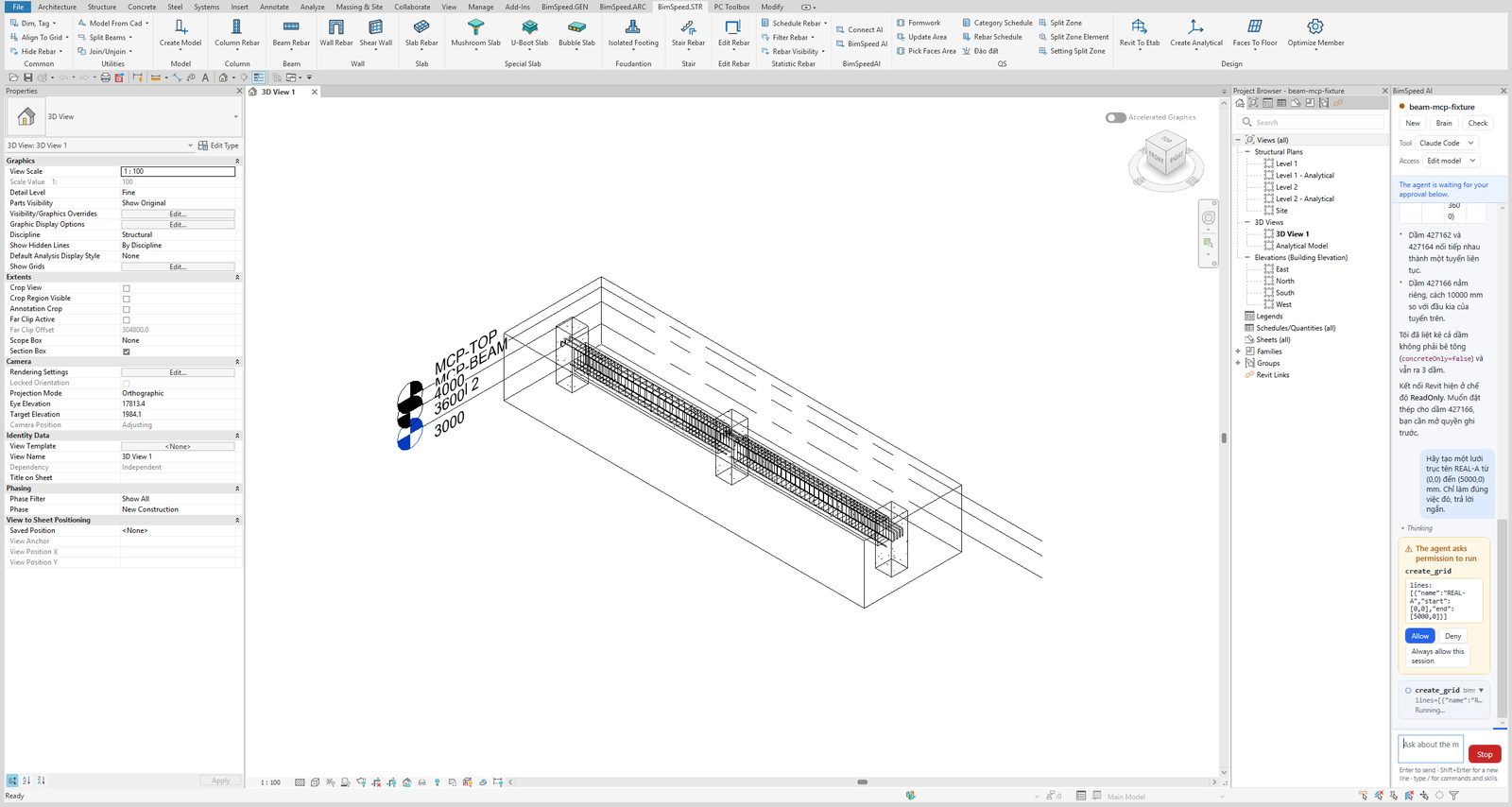
Screenshot from Revit 2027 with the English interface. The pane docks on the right; the permission card appears before the agent writes to the model.
What the pane does
- Answers questions about the model: "How many beams does the model have? List the IDs.", "Summarise columns by level."
- Works with BimSpeed tools: place beam rebar with a preview-first workflow, create beam drawings, place rebar in bulk, review the model. See Commands and skills.
- Remembers per project: the values you agreed on are saved in the second-brain folder so you are not asked again next time.
- Always asks before changing the model: see Safety and privacy.
Supported AI tools
BimSpeed AI has no AI of its own. The pane runs a command-line tool already installed on your computer and uses the sign-in you already have (no API key needed):
| Tool | Pick in the pane | Account you need |
|---|---|---|
| Claude Code | Tool → Claude Code | Claude Pro, Max, Team, Enterprise or Console |
| Codex | Tool → Codex | ChatGPT Plus, Pro, Business, Edu, Enterprise (or an OpenAI API key) |
Antigravity (agy) | Tool → Antigravity | A Google account (personal or Business) |
You only need one of the three. To install and sign in, see Install and sign in to an AI tool.
Requirements
- BimSpeed installed for Revit 2024 to 2027.
- An account for one of the three AI tools above, with the tool installed and signed in under the same Windows account that runs Revit.
- A Revit model open (the pane works per model and cannot be used until a model is open).
- An Internet connection, because the AI tool calls its provider's service.
No MCP setup
Open the pane and the BimSpeed tools are ready: no claude mcp add, no editing Claude or Codex configuration files, no Connect AI window. BimSpeed connects the AI tool to Revit automatically each time you start a chat.
The Connect AI button (same panel) is for when you want to drive Revit from an external AI app such as Claude Desktop, Cursor or VS Code through MCP. See BimSpeed AI: Connect Claude, Codex, Antigravity. The chat pane on this page runs inside Revit and needs none of that setup.
One chat per model
The pane is bound to the model that is open. The pane title shows the model name; every model has its own chat, its own access level and its own notes folder. Switch to another model in Revit and the pane switches to that model's chat. Details in Using the BimSpeed AI pane.
Quick start
- Install and sign in to one of the three AI tools (once).
- Open a model in Revit, then go to BimSpeed.STR → BimSpeedAI → BimSpeed AI.
- Look at the First-run check, then ask: "How many beams does the model have?"
- To act on the model, set Access to Edit model and approve each write command.