Using the BimSpeed AI pane
This page covers everyday use. If you have not installed an AI tool yet, start with Install and sign in to an AI tool.
BimSpeed AI is in testing. The interface may change before the official release.
1. Open the pane
- Open a model in Revit. If no model is open, Revit shows "Open a Revit model before using BimSpeed AI."
- On the ribbon, go to the BimSpeed.STR tab, the BimSpeedAI panel, and click BimSpeed AI.
- The pane docks on the right of the Revit window. Click the button again to show the pane if you closed it.

The Connect AI button is for external AI apps; the BimSpeed AI button opens the chat pane.
The pane uses the same language as BimSpeed (English or Vietnamese). The assistant answers in the language you write in.
2. The top of the pane
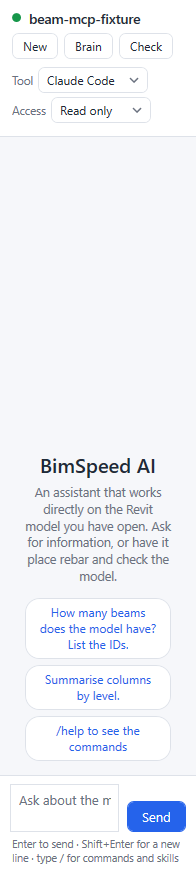
From top to bottom:
- The model name the pane is bound to. The colored dot next to it shows its status.
- Three buttons: New (new chat), Brain (the second-brain folder), Check (runs the First-run check again).
- Tool: pick Claude Code, Codex or Antigravity for this chat.
- Model: shown only when Antigravity is selected, to pick the
agyAI model. For the other tools, use/model <name>if you need to change it. - Access: the assistant's access level on this model.
Access: Read only, Edit model, Advanced
| Access | What the assistant can do |
|---|---|
| Read only (default) | Look at the model only. Never creates, edits or deletes anything |
| Edit model | Create or modify elements with BimSpeed tools. Every write command needs your approval |
| Advanced | Same as Edit model, plus permission to run C# code in Revit. Also needs your approval |
Access is set per model. To place rebar, create drawings or do any write action, switch to Edit model first. If the assistant tries to write while you are on Read only, the command is blocked and the assistant tells you to change the access level.
Advanced lets the assistant write and run C# code on the model. Read the permission card carefully before you press Allow. See also Safety and privacy.
3. Ask the assistant
Type in the input box at the bottom and press Send or Enter. The answer streams in as it is written.
Some questions to start with (on Read only):
- How many beams does the model have? List the IDs.
- Summarise columns by level.
- List the levels and their elevations.
- Which beams have no rebar yet?
- Total concrete volume by material.
On Edit model:
- Place rebar on beam 9129612 with the default settings.
- Create a grid named A from (0,0) to (5000,0) mm.
Type /context followed by your question to attach the current selection and the active view from Revit, for example /context Does this beam already have rebar?.
For work that has a ready-made procedure, such as beam rebar, use a skill: the assistant asks you for each missing design value instead of guessing.

Reading the answer
- Thinking: the assistant's reasoning; click to expand or collapse.
- Tool cards (for example
list_beams): show which BimSpeed tool the assistant just called, with Running… until it finishes. Click a card to see its Parameters and Result. - Images (view or sheet captures): click an image to enlarge it.
- Right-click the content and choose Copy to copy it.
The assistant can misunderstand or answer incompletely. Numbers and any rebar it creates still need an engineer's check in Revit. BimSpeed AI does not replace design calculations and review.
4. Approve write commands
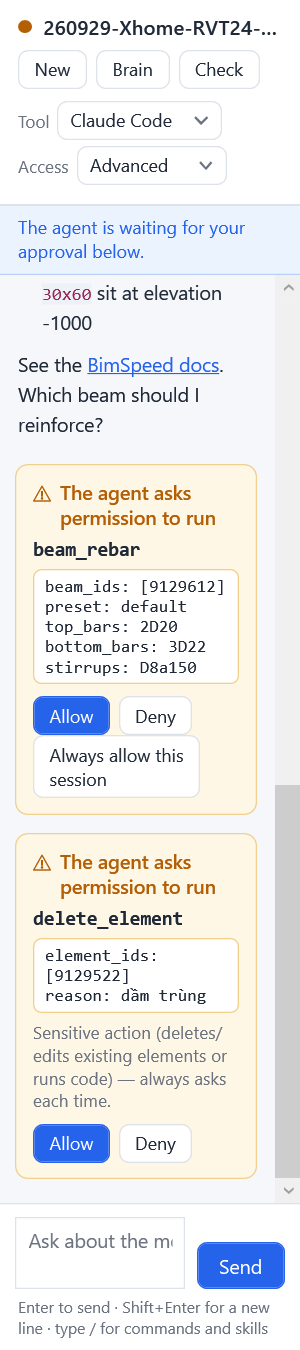
On Edit model or Advanced, before the assistant writes to the model, the pane shows a card titled The agent asks permission to run with the tool name and its parameters. Revit does nothing until you decide.
| Button | Effect |
|---|---|
| Allow | Run this command once |
| Deny | Do not run it. The assistant receives the reason "The user denied this action." and stops that action |
| Always allow this session | The same tool is not asked about again until the chat ends (for example when you press New) |
Sensitive actions (deleting or editing existing elements, running code) do not have an Always allow this session button: the pane asks every time.
After you decide, the card records the outcome: Allowed, Denied, or Timed out — not performed if you left it too long. Write commands created by BimSpeed in Revit can be undone with Undo.
5. Stop, new chat, new line
| To | Do this |
|---|---|
| Stop the running turn | Press Stop (it replaces Send while the assistant is working). The pane reports "Run stopped." A write command that already started in Revit may still finish, so check the model and use Undo if needed |
| Start a new chat | Press New or type /new. Skills and the Brain folder are reloaded |
| Reopen an earlier chat | Type /resume and pick a chat of this model |
| New line in the input box | Press Shift+Enter (Enter alone sends) |
| Open the command list | Type /, see Commands and skills |
Switching between models
Every open model has its own chat, bound to that model.
- Switch to another model in Revit (click that model's view tab).
- The pane changes the model name at the top and shows the new model's chat. Access is also kept per model.
- Go back to the first model and its chat is still there.
Revit can only run commands on the model that is open. So:
- If you switch models while the assistant is working on the other one, the pane shows The agent is waiting for you to return to model "...". Go back to that model so the assistant can continue. The assistant does not act on the wrong model.
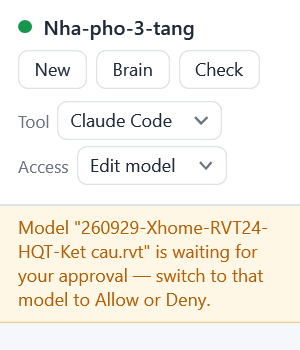
- If another model is waiting for your approval, the pane shows Model "..." is waiting for your approval. Switch to that model to Allow or Deny.
- Closing a model stops that model's chat. Reopen the model and use
/resumeto continue.
Common messages
| Message | Meaning and what to do |
|---|---|
| Open a Revit model to start chatting. | No model is open |
| Revit is busy (a dialog may be open). The agent will wait until Revit is free. | Close the dialog that is open in Revit |
| AI tool not installed | Install Claude Code, Codex or Antigravity (type /install), then press Check again |
| Not signed in | Sign in once in a terminal (type /install to see how), then resend your message |
| The agent stopped unexpectedly | Send a new message to restart; the chat will be resumed |
| Could not read the agent's reply | The AI tool's version may have changed. Try /new to start a fresh chat |