Pick Paint — face paint, material parameters and management
Open BimSpeed.ARC → Utilities → Paiting / Pick Paint in a 3D view where faces can be selected. Face paint differs from a family Material parameter; inspect both when preparing quantities.
| Control | Effect |
|---|---|
| Material list / Search / Reload / Sort | Finds/selects project materials, refreshes the list and changes ordering. Heart buttons mark favorites rather than creating materials. |
| Material Class | Filters the material list; selecting a filter does not change a material's class/category. |
| Name / RGB / Transparency | Edits the selected material. Transparency runs from 0 (opaque) to100 (transparent); shared-material changes can affect all elements using it. |
| Show painted faces | Highlights painted materials for inspection. Disable/reset afterward; highlight color is not a newly assigned finish. |
| Double-click / Edit | Opens the selected material for editing. Check shared use before saving. |
| Paint Face | Picks real geometry faces for the selected paint material; Esc ends picking. Does not change host thickness. |
| Paint Parameter | Assigns a material through a parameter. Inspect whether the affected parameter is instance- or type-based and check other instances. |
| Get Material | Samples the selected face/element material for reuse; confirm the highlighted material. |
| Undo Paint | Removes face paint; it is not a global Undo for material edits or parameter changes. |
| Open Material Manager | Opens material management. |
| Context menu: Copy to another Revit file | Transfers material to the selected open target, not its model geometry. |
| Show elements using / Delete material | Reveals material use or deletes the material. Check references before deleting. |
Test one wall face in a copy. Compare before/after in a material-visible display mode, sample it with Get Material, then remove paint to distinguish paint from the host material. After changing RGB, inspect another host using the same material. Highlighting is an inspection aid; reset it before result screenshots. Save/reopen and check a suitable Material Takeoff; display color alone does not establish finish quantities.
Observed Revit images
Captured in Revit 2024 on a project copy using tool windows opened independently. UI screenshots do not establish the complete ribbon/picking/generation flow. Click an image to open the unchanged original at full resolution.

- Search, reload, material class and sort menu.
- Selected material, RGB and transparency slider; the material is existing model data.
- Painted-material display and Paint Face/Paint Parameter/Get Material/Undo Paint/Material Manager actions.
- Scrollable materials and favourites; changing the visible list does not paint faces.
Pick Paint — material-list bottom
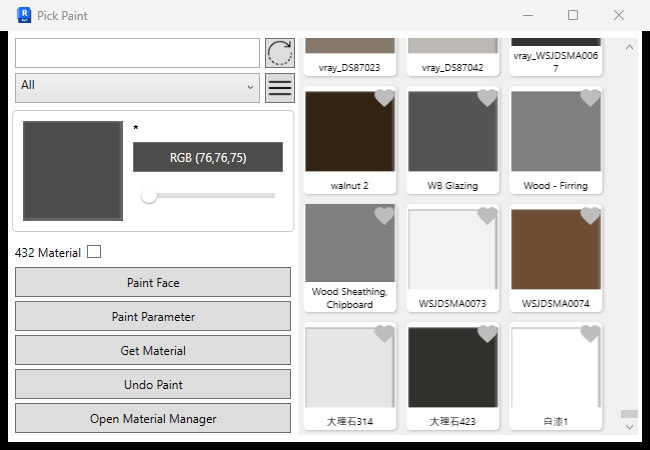
- Search, reload, material class and sort menu.
- Selected material, RGB and transparency slider; the material is existing model data.
- Painted-material display and Paint Face/Paint Parameter/Get Material/Undo Paint/Material Manager actions.
- Scrollable materials and favourites; changing the visible list does not paint faces.
Observed build and verification scope
Pick Paint was opened with 432 project materials and the top/bottom of its list reviewed. Scrolling only changed the visible rows. Faces were not painted/unpainted, materials were not edited and parameter painting was not run. Material names/thumbnails are project data, not a standard material library.