Annotate longitudinal beam details
Beam Detail adds reinforcement annotations and dimensions to an active longitudinal section/detail view. The command checks that the active view is a ViewSection before opening settings; open the view rather than starting from a plan or sheet.
Example scope: the interface and output were checked in Revit 2027.3, build 2027.0.0.0, using existing reinforcement. The result model was saved and reopened; the full ribbon-pick-Apply interaction was not exercised. Annotation elements shown here are not newly generated reinforcement.
Download Revit 2027 input + result models · Complete settings reference
Run the command
Open the beam's longitudinal view and use BimSpeed.STR → Beam → Beam Detail. Settings open on Detail. Choose dimensions, left/right tags, offsets, scale and a suitable template, then Apply. The command requests beam selection after Apply when no geometry list has been supplied; select the main beams and Finish.
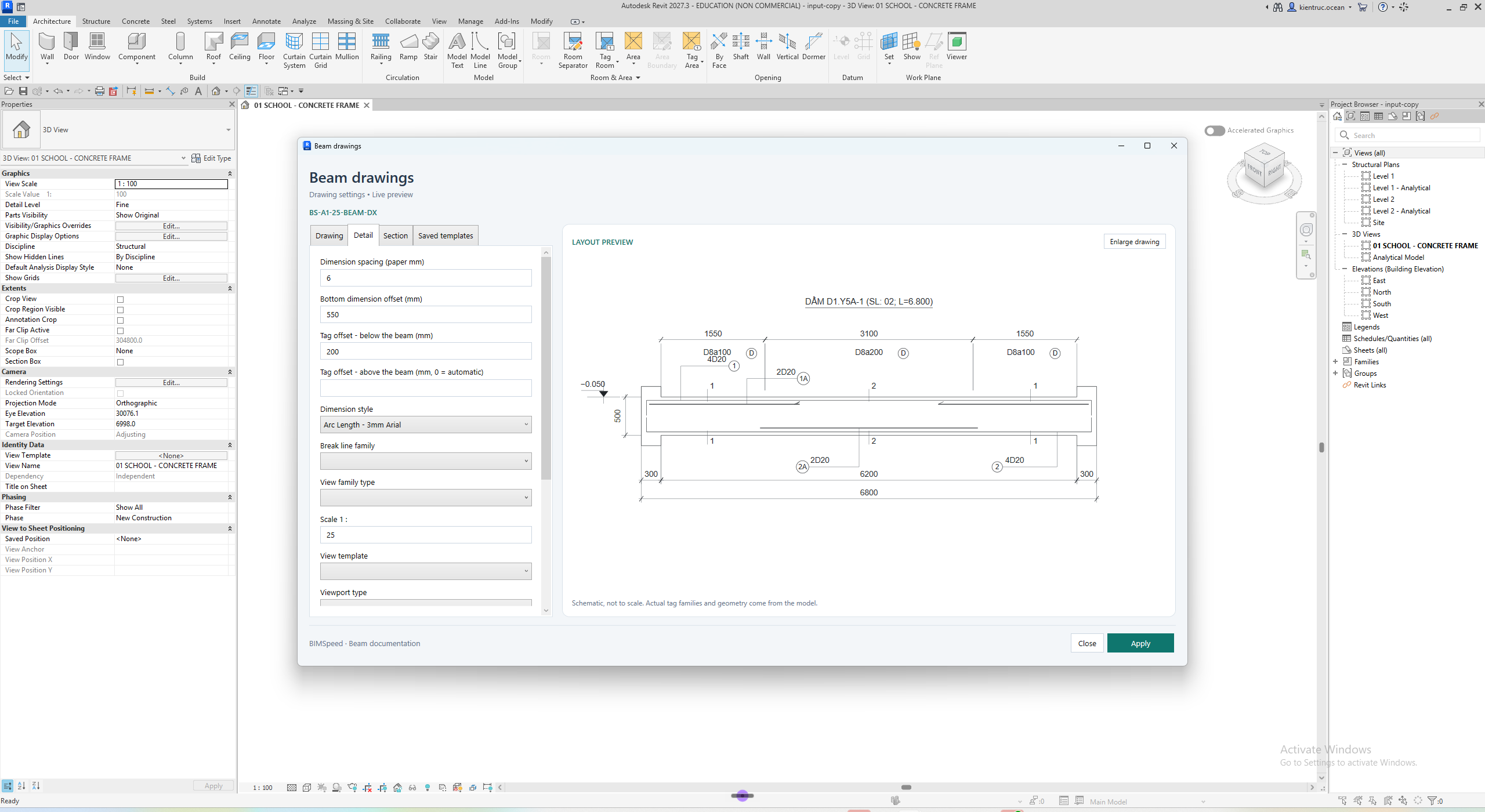

- Detail configures longitudinal annotations.
- Scroll the left column to reach families, templates, viewport types and tag/end-symbol toggles.
- The preview illustrates layout; inspect the actual model view separately.
- Apply proceeds to selection/annotation after validation.
Every field and scrolled region.
Output and limits

View DOCS-B01-detail-427195 was created on the copy and contains 9 IndependentTags and 6 Dimensions for beam427195 in the annotation example. Some dimensions have multiple segments; dimension element counts are not measured-interval or bar counts. Some annotation placement still needs adjustment; this proves element creation, not finished drawing quality.
In the result model, open this view and select a tag to inspect its referenced rebar, quantity, diameter and stirrup zone. Compare the 6000 mm span with the source beam. When changing the top-tag offset from 0 to explicit mm, inspect longitudinal labels and section heads for collisions. Changing 1:75 to 1:50 makes geometry larger on paper and may require more sheet space.
The tool processes existing annotations. This example used a dedicated new view and did not verify preservation of manual edits on rerun. Save a copy and use Undo after an unsuitable run. Saving the RVT preserves the model; Saved templates Add/Update/Export manage settings only.
Practise and inspect the reopened model
Open a copy of school-service-result.rvt from the download and find Views → Sections → DOCS-B01-detail-427195. If placed, it can also be opened from its sheet viewport. Select a tag to inspect its reference/leader; select a Dimension and inspect Value or its individual segments. One multi-segment Dimension is not one measured interval.
Retain the result for comparison and work on a copy. Change one tag offset or scale, Apply to the intended beams in the view, and inspect upper/lower labels for collisions before placing the view on a sheet. Saved templates Add/Update/Export retain configuration only. Save As the RVT after manual edits, reopen the same view and check that tags still reference the intended Rebar.