Rebar Shape 2D — Pick and Place
English Revit 2027.3 demonstration. Verification: The earlier Revit 2027 pick-flow capture did not establish output. The Revit 2024 supplement below verifies a newly placed Detail Item through the creation service; the full entry flow is identified separately.
Video
Narration: Google Gemini Charon, professional English. The video retains the full Revit screen, briefly zooms on named controls, and includes timed English subtitles. Transcript · SRT.
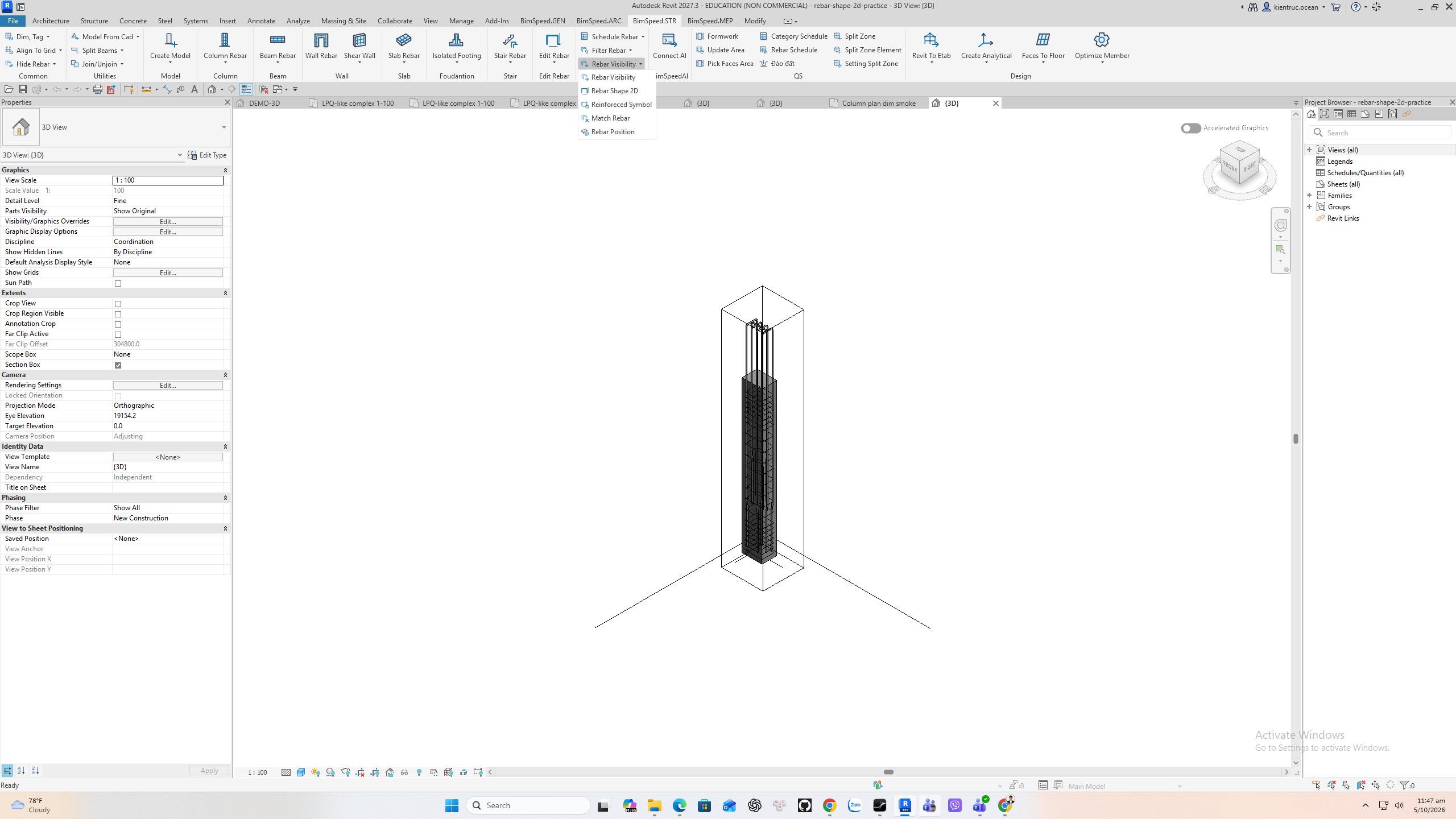
1. Choose the shape tool
Open BimSpeed dot S T R, expand Rebar Visibility, and choose Rebar Shape 2D. This is a detail drafting command, separate from Reinforced Symbol. Use a plan or section showing the source Rebar, then select that Rebar and a destination point for the detail.
2. Pick a Rebar element
The command asks for a Rebar element. Select the actual bar or rebar set, not its concrete host. A copied column cage supplies the selectable bars in the practice file. After the pick, BIMSpeed prompts for a point where the shape will be placed.
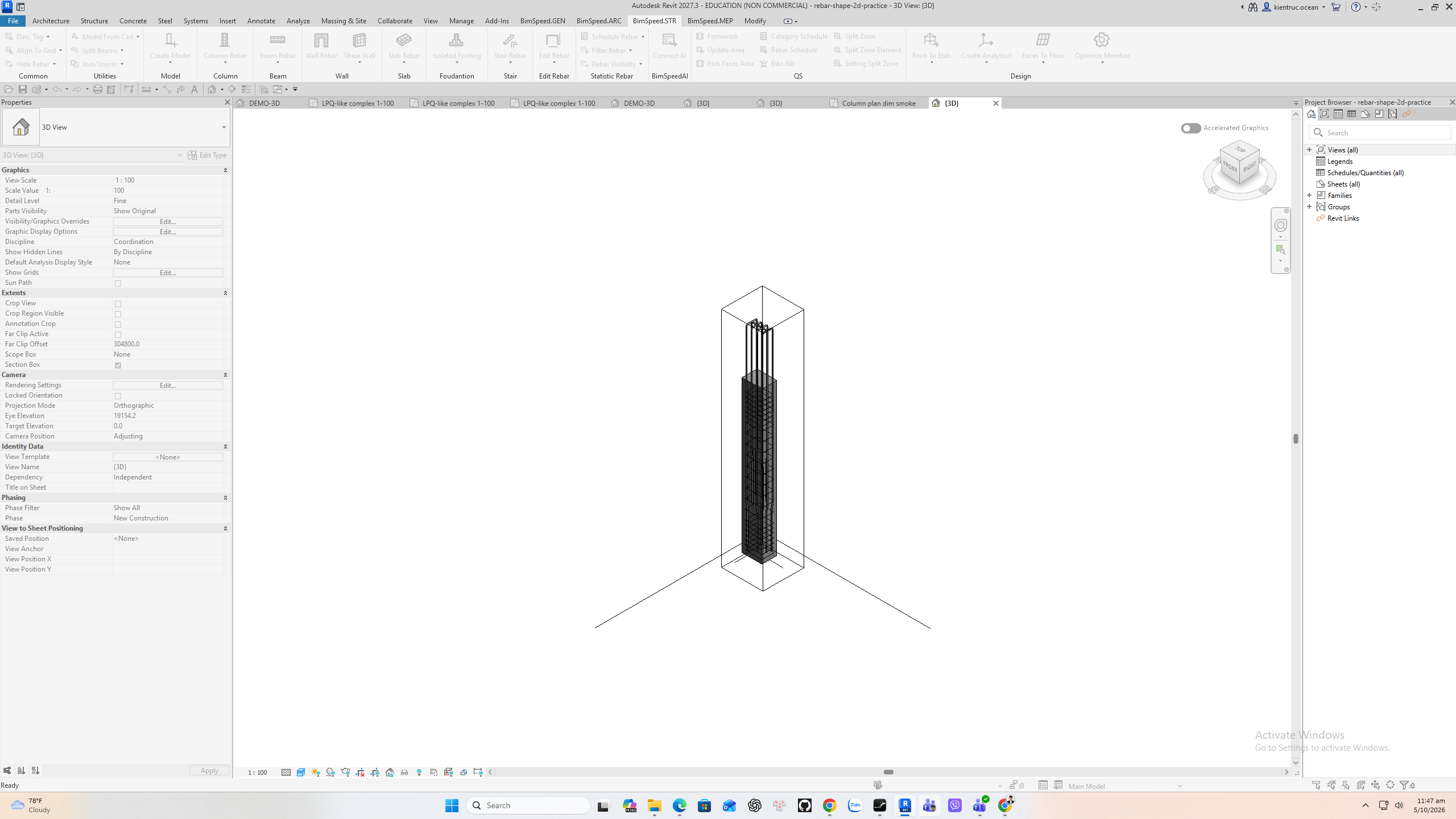
3. Place and inspect the detail
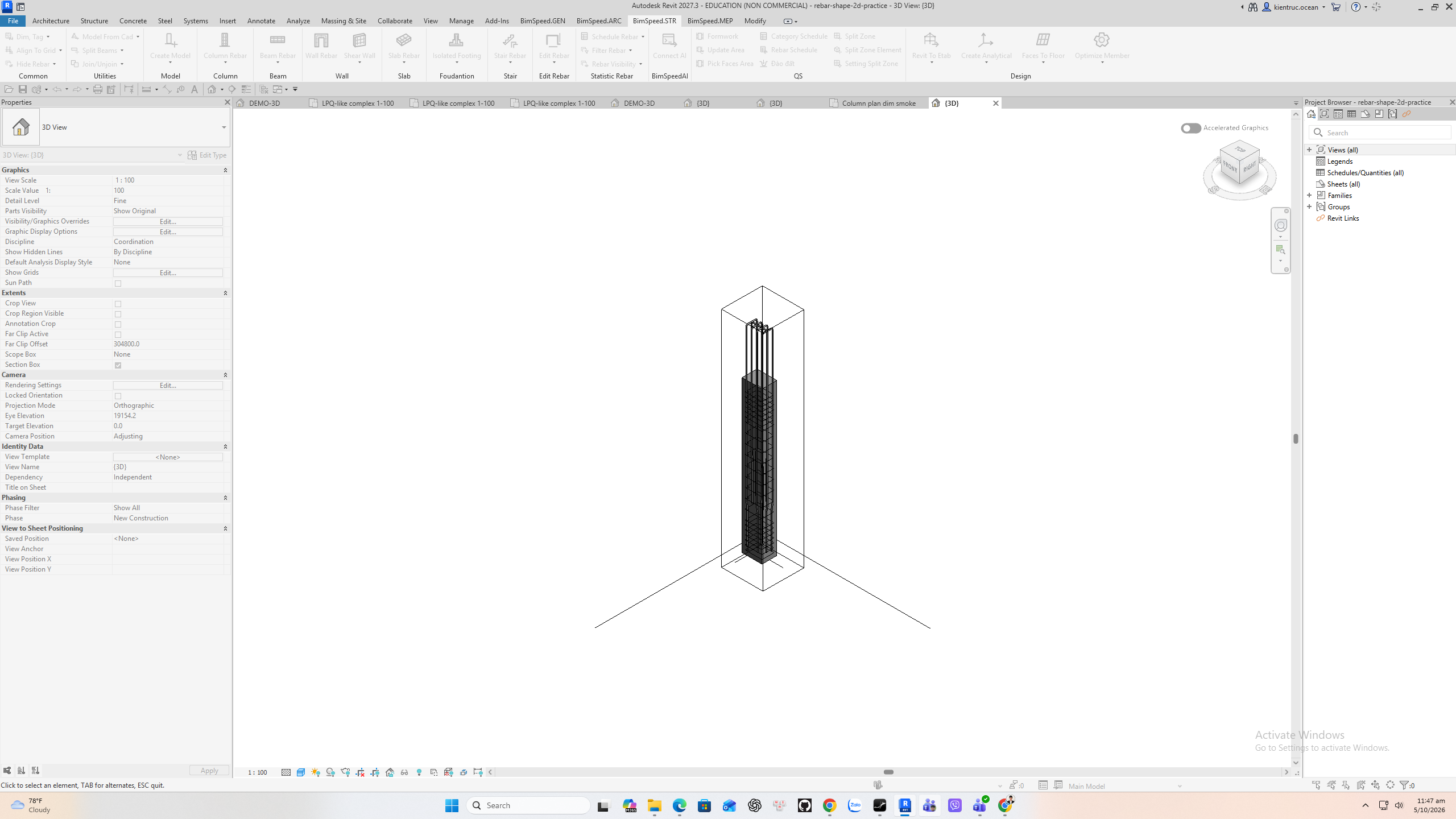
Pick a clear point in the same two dimensional view. The command returns to its next Rebar prompt, so press Escape when finished. The earlier Revit 2027 3D-view attempt did not show a placed annotation. The Revit 2024 plan creation-service result is described below; the earlier entry/pick/place sequence remains unverified.
Verified placement in Revit 2024
On a copy of an existing beam-reinforcement project, the Rebar Shape 2D creation service placed one new Detail Item in plan HẦM 01. Its source is D25, shape M_00, 5271 mm long; the actual detail shows 5271 and family BS_REBAR_SHAPE_444061. This verifies the creation service, not the complete entry-command/picking flow for this build. The RVT was saved; reopened Properties evidence is added separately when verified.
The Revit interface is genuinely English; view/family names are project data. The private project model is not distributed.

1. Detail Items (1) and the new family in Properties. 2. The placed 2D line and 5271 length label; this is a view annotation, not the settings preview.

1. Properties confirms Detail Items (1); the new detail family appears above.

1. The 5271 label beside the placed 2D detail; blue selection dimensions belong to Revit.