Rebar Shape Images — Schedule Graphics
English Revit 2027.3 demonstration. Verification: C-01 partition: 9/9 rebar images, 3 new, 6 reused, 0 failed verified.
Video
Narration: Google Gemini Charon, professional English. The video retains the full Revit screen, briefly zooms on named controls, and includes timed English subtitles. Transcript · SRT.
1. Open Rebar Images and choose scope
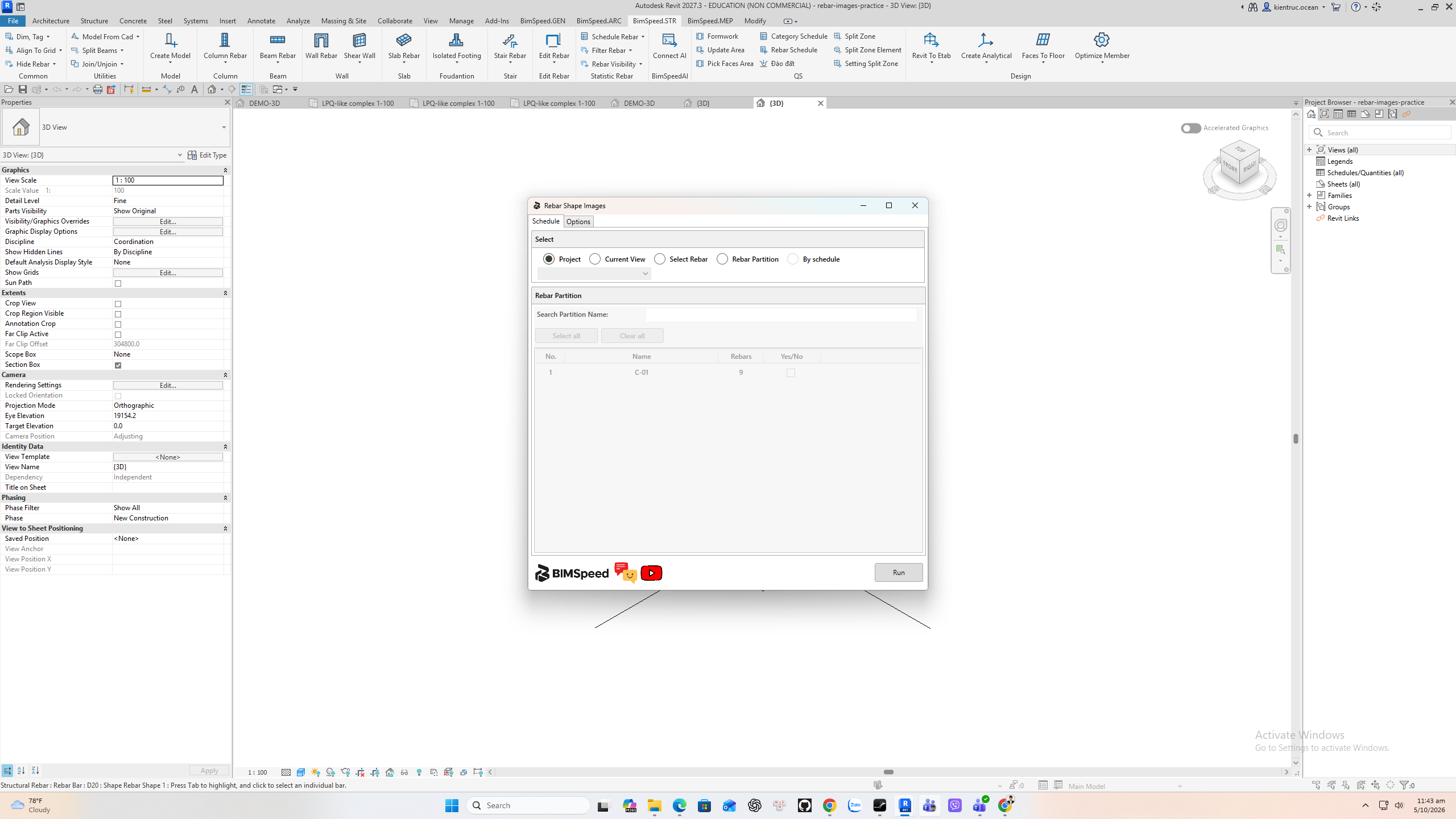
On BimSpeed dot S T R, expand Schedule Rebar and choose Rebar Images. Scope can be the whole project, current view, selected Rebar, Rebar Partition or a schedule. Choose the narrowest useful scope to preview a change before a full project run.
2. Choose the C-01 partition
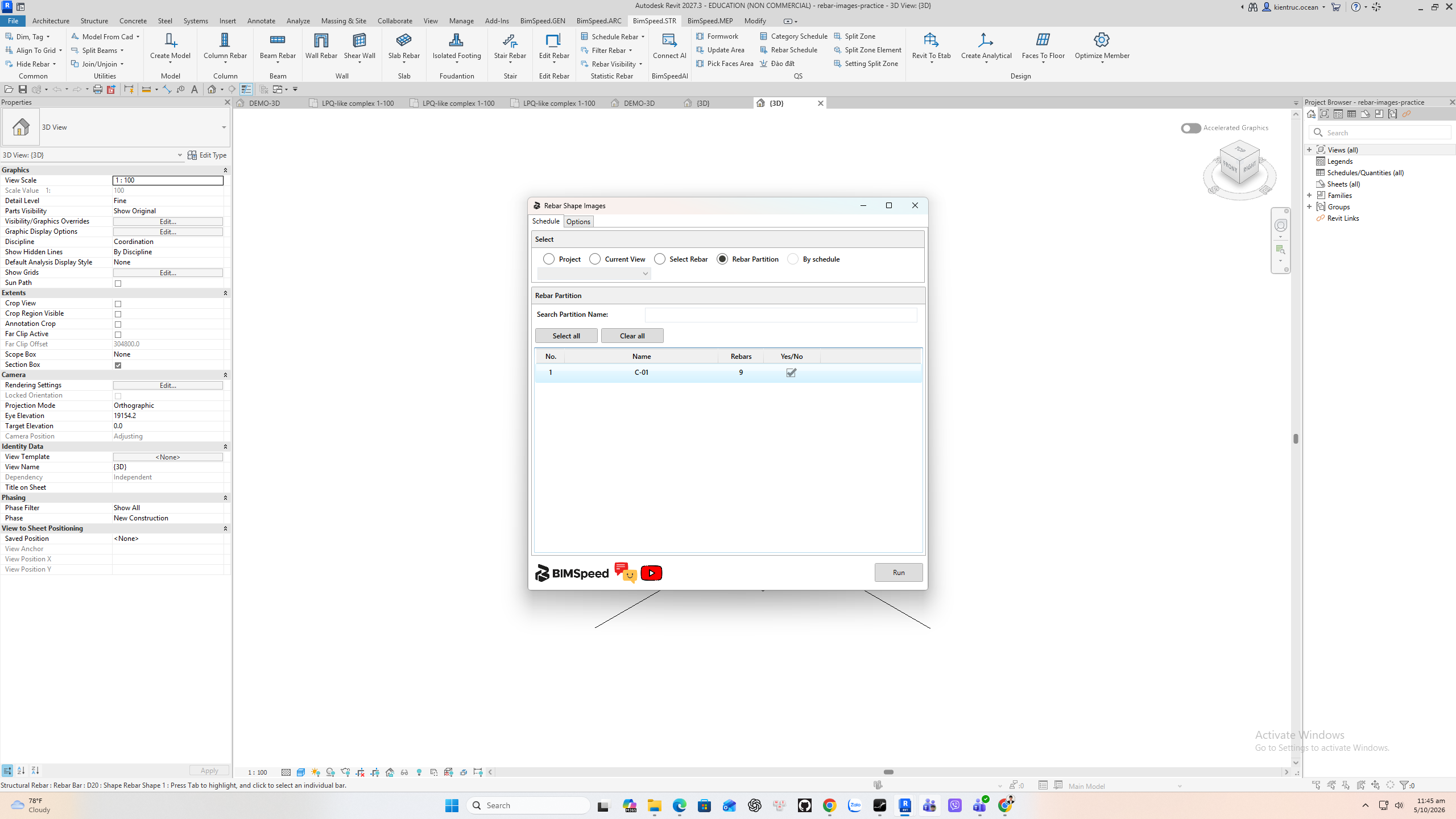
This practice cage has nine hosted bars grouped under Partition C dash zero one. Select that partition and review the count before Generate. Rebar Partition can be populated from a host Mark with the separate Set Partition command.
3. Review image options
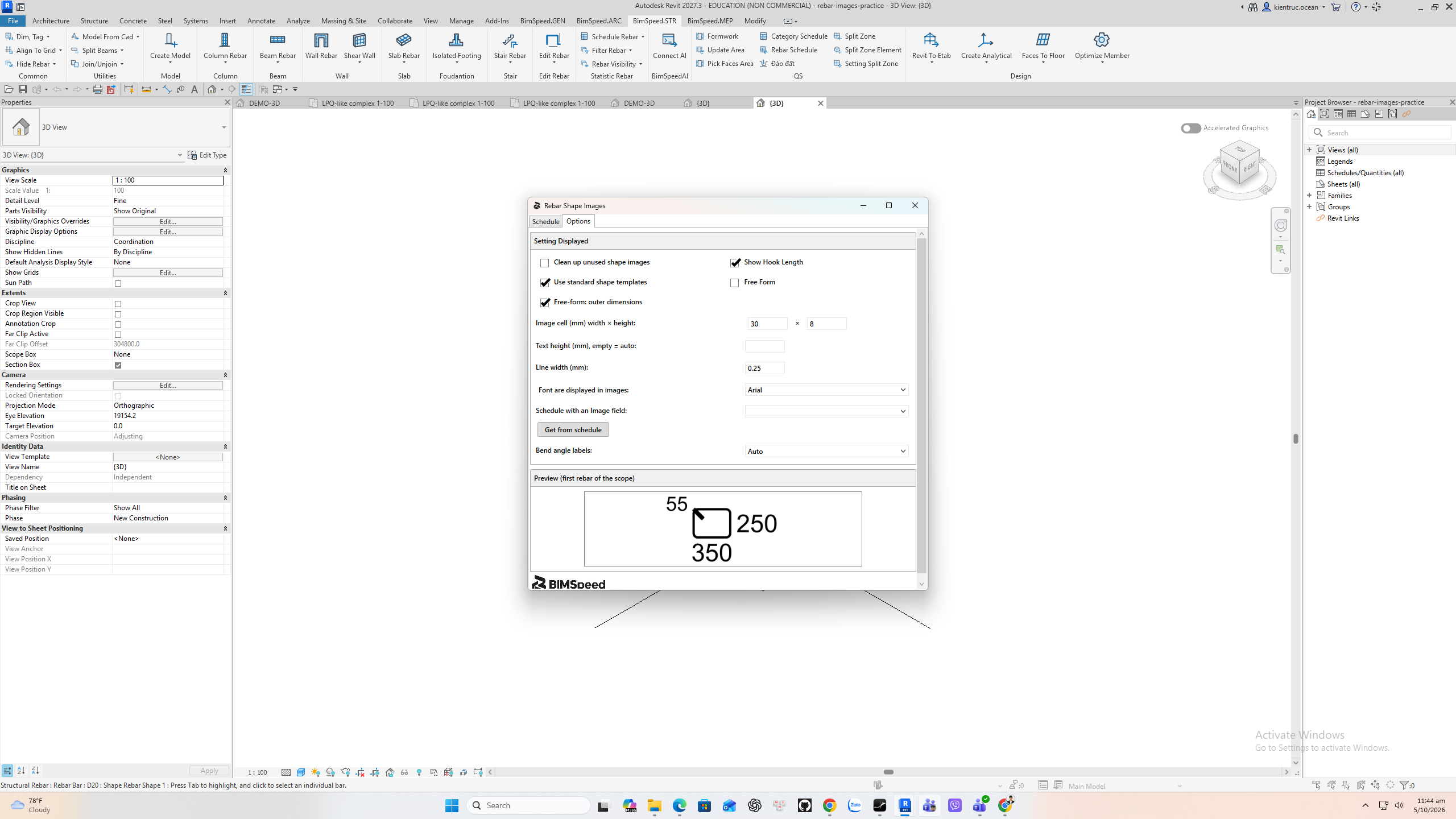
Options controls shape image templates, reuse and housekeeping. Keep reusable images when consistent with the schedule style, and verify the proposed template for your bar shapes. The lower option panel includes cleanup controls; review before a project-wide run.
4. Generate and read the report
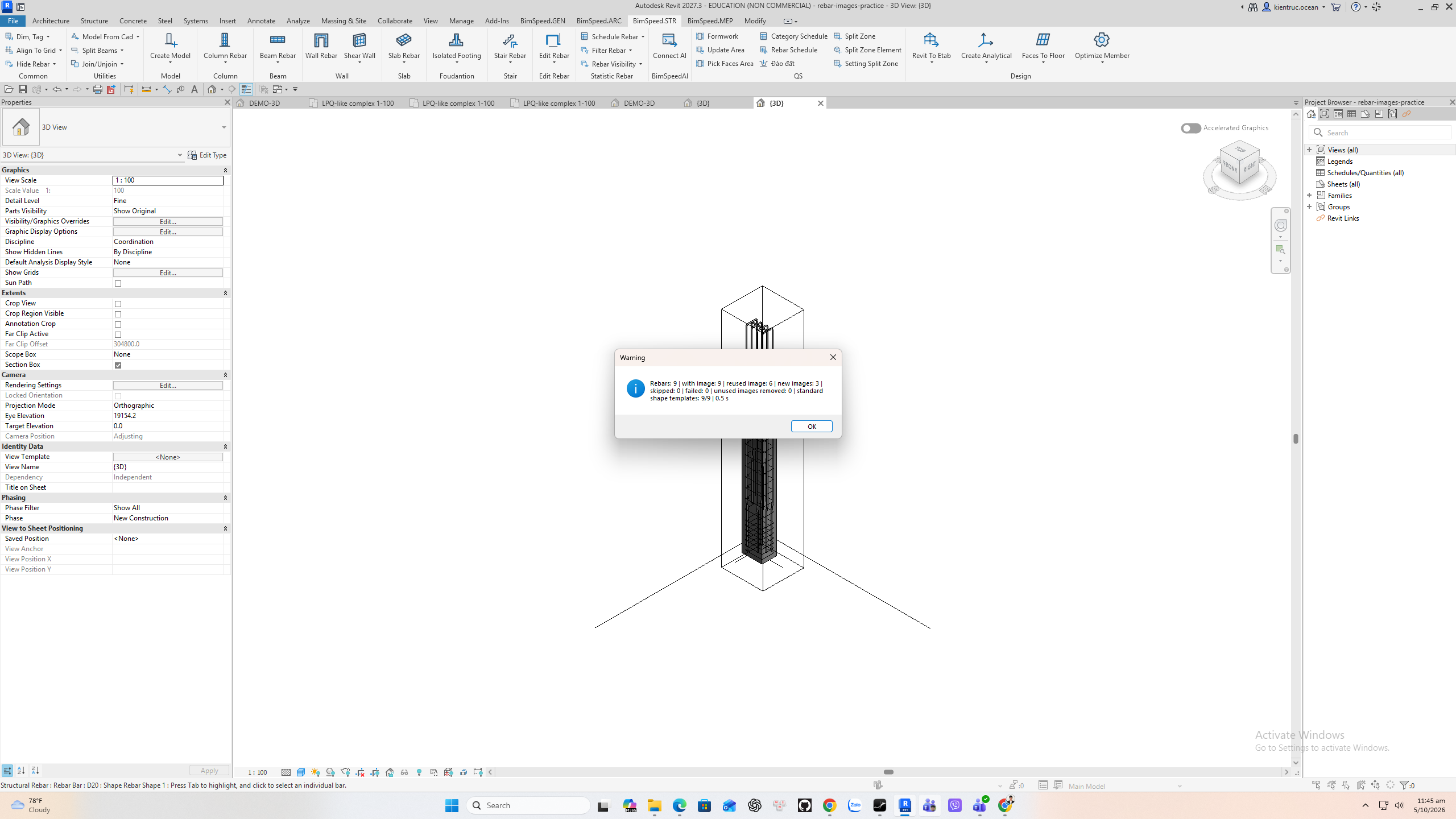
The actual report shows nine rebars with images: six reused and three new, no skips and no failures. It used nine standard templates and finished in half a second. This is an output report, not just a settings preview.
5. Verify Image on a Rebar
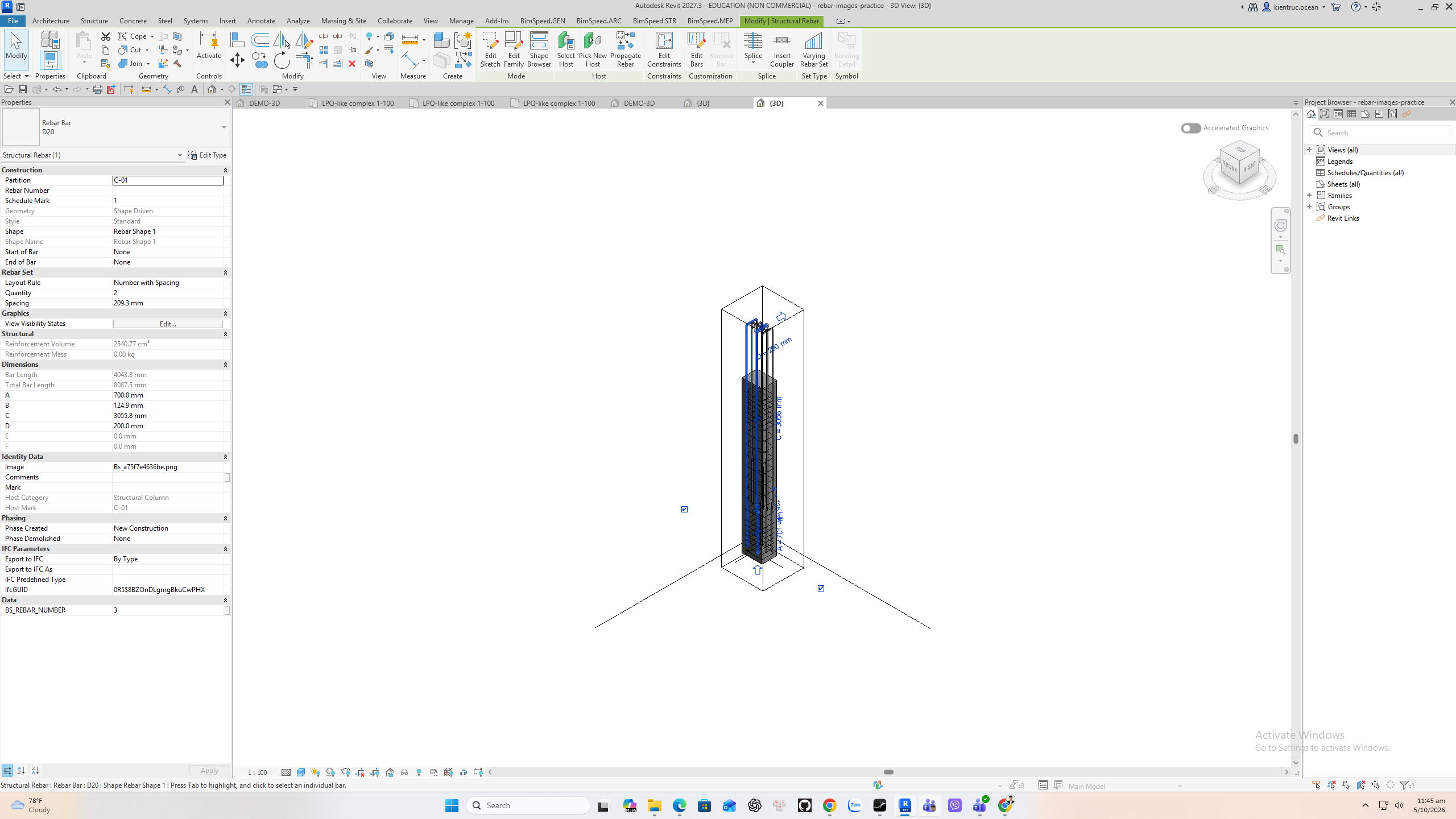
Select one D twenty bar after the run. Its Revit Image field contains a generated B s PNG filename. Use that parameter in a Rebar Schedule image column, then save the R V T. A partition run changes only the selected partition; other model bars are outside this evidence.